
Feature Lines: The Useful Little Monsters

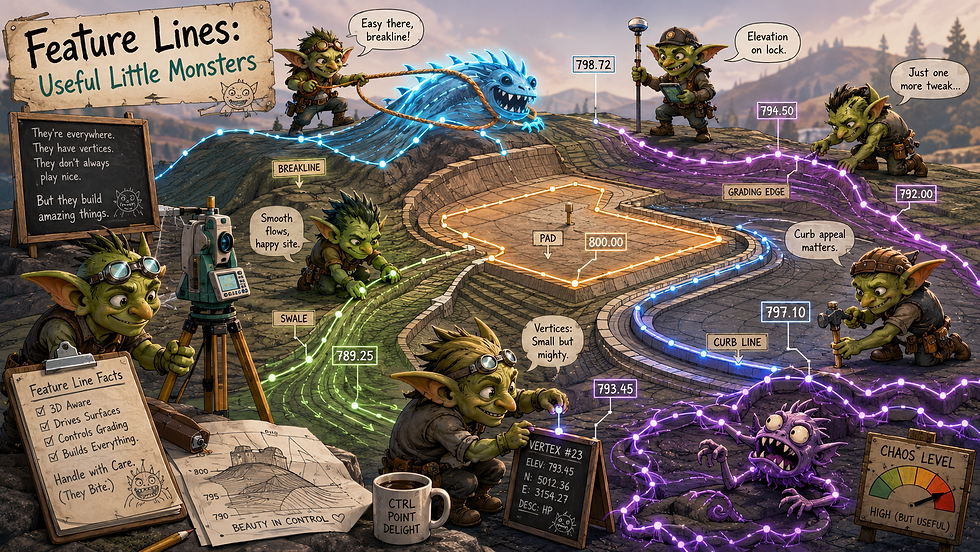
Feature lines are one of those Civil 3D tools that sound innocent and easy.
“Just draw a line with elevations,” they said.
“It’ll help with grading,” they said.
“It’s smarter than a 3D polyline,” they said.
And technically, all of that is true. Feature lines are incredibly useful. They carry elevations. They define edges. They control grading. They can be added to surfaces as breaklines. They can represent curbs, swales, walls, pads, berms, ditches, sidewalks, drive aisles, and all the other delightful geometry we civil folks are asked to make behave in three dimensions.
But feature lines are also little monsters.
Not evil monsters. Not “delete your project and question your career choices” monsters. More like gremlins. Helpful gremlins. The kind that will do exactly what you asked, but not necessarily what you intended.
What Is a Feature Line, Really?
The way I usually explain feature lines to new users is to start with the basic AutoCAD objects they already know, then work up the food chain.
First, you have a regular AutoCAD line.
A line is simple. It has a start point and an end point. You can assign it an elevation, but the whole object is basically living at that one elevation. It is not trying to be fancy. It is linework. It knows its role.
Then you have an AutoCAD polyline.
A polyline can have multiple vertices, which makes it more useful for laying out real geometry. It can bend, turn corners, close on itself, and generally act like something we actually use in production drawings. But from an elevation standpoint, it is still pretty limited. You can give the polyline an elevation, but that elevation applies to the entire object.
So yes, it has multiple vertices.
No, those vertices do not each get their own elevation.
The whole polyline is still basically standing on the same flat shelf.
Next comes the AutoCAD 3D polyline.
Now we are getting somewhere. A 3D polyline can have multiple vertices, and each vertex can have a different elevation. This is a big step up. Now the object can actually move through 3D space instead of pretending the whole world is perfectly flat, which is adorable but not especially useful for civil design.
A 3D polyline can represent a breakline, a ditch, a curb, a ridge, a swale, or whatever other line-shaped piece of grading misery you are trying to model.
But then Civil 3D walks in and says, “That’s cute. What if we made it smarter and also slightly more dramatic?”
That is where the Civil 3D feature line comes in. A Feature Line is a 3D polyline on steroids without the "roid rage".
A feature line is similar to a 3D polyline because it can have multiple vertices with different elevations. But it also has a lot more Civil 3D functionality packed into it. You can edit elevations more intelligently, add elevation points between vertices, use it for grading, assign styles, place it on a site, have it interact with other feature lines, and add it to surfaces as a breakline.
In other words, a feature line is what happens when a 3D polyline gets a Civil 3D promotion, a clipboard, and just enough authority to start causing problems.
That is why feature lines are so useful.
That is also why they occasionally act like tiny monsters.
You can create feature lines from objects, draw them from scratch, assign elevations, pull elevations from a surface, step them up or down, add elevation points, delete elevation points, raise/lower them, grade from them, and generally poke at them until your surface either looks beautiful or like it was designed during a caffeine shortage.
Elevations: Where the Fun Begins
Feature lines are all about elevation control.
Every vertex can have an elevation. You can add extra elevation points along a segment without changing the horizontal geometry. That is fantastic when you need to tell Civil 3D, “No, really, this driveway needs to slope this way, not whatever abstract sculpture you just created.”
But here is where users get into trouble.
A feature line can look simple in plan view while secretly holding a small novel of vertical information. You might see a clean rectangle on screen, but that rectangle could have different elevations at every corner, extra elevation points halfway along each side, and one suspicious point at elevation 0.00 because someone clicked too fast in 2019 and now we all have to live with it.
This is why the Elevation Editor matters.
Use it.
Love it.
Fear it slightly.
It will show you what the feature line is actually doing, not what your optimistic eyeballs think it is doing.
Vertices vs. Elevation Points: Yes, There Is a Difference
Civil 3D likes to keep things interesting by making a distinction between geometry points and elevation points.
A PI point changes the horizontal shape of the feature line.
An elevation point changes only the vertical behavior along the feature line.
This is useful because you may want the line to stay straight in plan view but still have grade breaks along it. For example, a curb line may run perfectly straight horizontally, but vertically it may need to follow a sag, crest, or tie-in condition.
That is great.
Until you forget elevation points are there.
Then you start wondering why your surface is doing weird things between two perfectly normal-looking vertices. Spoiler: there is probably an elevation point hiding in there like a tiny civil goblin.
Grading: Where Feature Lines Become Management
Feature lines are often the backbone of grading. Building pads, pond bottoms, berm tops, curb returns, slope intercepts — all of these can be driven by feature lines.
This is where they shine.
This is also where they start asking for a supervisor.
A feature line used for grading is no longer just a line. It is now part of a relationship to your modeling. It may be controlling a grading object. It may be tied to a surface. It may be part of a site. It may be influencing other feature lines. It may be affecting a proposed surface. It may be doing all of this while looking completely harmless on screen.
This is why random edits can feel so dramatic.
You raise one endpoint by 0.10 and suddenly the grading object rebuilds, the daylight shifts, the surface changes, the contours get dramatic, and someone from drainage appears at your desk asking why the pond no longer ponds.
Feature lines are powerful because they are connected.
Feature lines are annoying because they are connected.
Both things can be true.
Sites: The Civil 3D Fight Club
Let’s talk about sites.
Feature lines in the same site can interact with each other. That means when they cross, Civil 3D may force them to share elevations at the crossing point. This can be useful. It can also be the reason you spend twenty minutes whispering, “Why did you change?” at your monitor.
The rule is simple:
Feature lines in the same site know about each other, see each other, and interact with each other.
Feature lines in different sites mind their own business and basically ignore each other.
That means sites are not just organizational folders. They are behavioral zones. They determine whether feature lines interact or politely ignore each other like coworkers in an elevator.
This is especially important when you have multiple design elements close together. Maybe you have a parking lot, a building pad, a pond, a sidewalk, and a retaining wall. Do all those feature lines need to interact? Maybe. Maybe not.
Putting everything in one site because “it was the default” is how you accidentally create a tiny geometric cage match.
Use different sites when you need separation.
Use the same site when you intentionally want interaction.
Do not use “Site 1” as a junk drawer for every feature line in the drawing unless chaos is part of the scope.
Styles: Because Even Monsters Need Outfits
Feature line styles control how they look. That sounds simple, and for once, it mostly is.
You can use styles to distinguish curb, sidewalk, wall, ditch, grading limits, pads, and whatever other design features your office has standardized. This is helpful because feature lines can pile up fast, and without visual organization, your drawing starts looking like a plate of spaghetti that got a civil engineering degree.
Good styles make feature lines readable.
Bad or lazy styles make every feature line look the same, which means you will eventually edit the wrong one.
And no, naming everything “Feature Line - Proposed” does not count as organization.
Why They Randomly Fight Each Other
Feature lines do not usually fight randomly.
They fight because we accidentally gave them reasons to fight.
Common causes include:
Feature lines crossing in the same site
Hidden elevation points
Bad inherited elevations from an existing surface
Duplicate feature lines stacked on top of each other
Grading objects rebuilding from edited geometry
Feature lines added to a surface as breaklines
Styles that make different objects look identical
Someone exploding things because they “just needed linework”
Feature lines are not random. They are just very good at exposing sloppy workflow.
Rude, but fair.
Best Practices From the Feature Line Survival Manual
Name them like they matter.
Use sites intentionally. Name the sites like they matter too.
Check elevations before blaming Civil 3D.
Use the Elevation Editor.
Separate feature lines that should not interact.
Keep grading feature lines clean.
Watch for duplicate geometry.
Use styles that actually tell you what you are looking at.
Do not turn every random polyline into a feature line just because the button is available.
And for the love of all things corridor-related, do not ignore the site setting.
The Love-Hate Relationship
Feature lines are one of the best tools in Civil 3D because they give you direct, flexible control over grading. They are fast. They are editable. They can be simple or complex. They let you model things that corridors, profiles, and assemblies may not handle gracefully without a lot of setup and adjustments.
But they also demand respect.
Treat them like dumb linework, and they will punish you.
Treat them like intelligent grading objects with relationships, elevations, and site behavior, and they become incredibly useful.
Still monsters.
But useful little monsters.
The kind you keep around because they get the job done, even if they occasionally knock over the furniture.
Thanks for stopping by the Den! Civil 3D: It’s not a bug, it’s a feature. Allegedly.
Images provided by Microsoft Copilot 2026.



Comments