
Why Civil 3D Is Screaming at You: A Field Guide for Civil 3D Errors

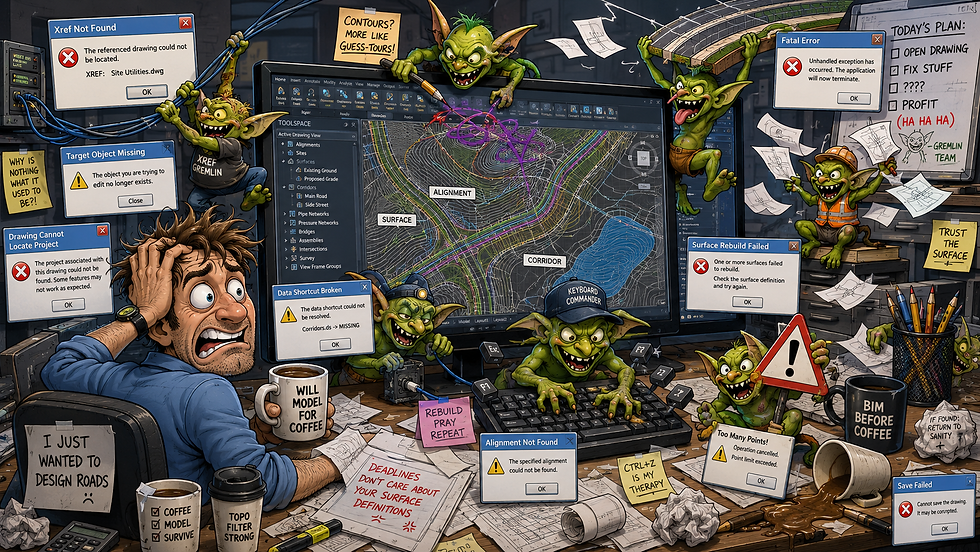
Civil 3D is a powerful design tool.
There. I said something nice.
Now that we’ve fulfilled our civic duty, let’s talk about the part nobody puts in the marketing brochure: the error messages, broken references, frozen drawings, unresolved Xrefs, corridor meltdowns, and mysterious “why is my surface shaped like a porcupine?” moments that show up five minutes before a deadline.
Some of these are actual Civil 3D or AutoCAD error messages. Some are documented Autodesk issues. Some are symptoms that mean your drawing is quietly chewing on a corrupted object like a feral raccoon in an attic.
First: Not Every Problem Is an “Error”
This matters.
A jagged contour, a weird corridor bowtie, a disappearing label, or a pipe that looks like it was drafted during a caffeine overdose may be a real problem, but it is not always an actual Civil 3D error message.
Civil 3D issues usually fall into one of three buckets:
Actual messages
Civil 3D or AutoCAD gives you a warning, fatal error, Event Viewer message, or dialog box.
Documented behavior
Autodesk has a support article saying, “Yes, this thing breaks, and here are some reasons why.” Very comforting. Very normal.
Symptoms
The drawing technically opens, but it behaves like it was raised by wolves.
Today, we’re focusing on the first two, with fixes that do not involve crying into your keyboard.
1. “Drawing Cannot Locate the Project”
What it means in human language
Civil 3D opened your drawing and immediately realized it has no idea where the Data Shortcut project went.
This is like your drawing saying:
“I remember having friends. Where did they go?”
Autodesk documents this message as appearing when Civil 3D cannot locate the project associated with the drawing’s Data Shortcuts setup.
Why it usually happens
Common causes include:
The Data Shortcuts working folder moved.
The project folder was renamed.
Someone opened the drawing outside the correct project environment.
The file path changed because of cloud storage, network paths, or user-specific folders.
Civil 3D is pointed at the wrong working folder.
How to fix it
Start here:
In Civil 3D, go to Manage tab > Data Shortcuts.
Check the Working Folder.
Set the working folder back to the correct project location.
Re-associate the drawing with the correct Data Shortcut project.
Verify that the _Shortcuts folder still exists.
If using Autodesk Docs, confirm the path is pointing to the shared Docs project location, not some user-specific local path.
CAD gremlin prevention tip
Do not casually move Data Shortcut folders unless you enjoy making everyone in the project question their career choices.
2. Broken, Missing, or Misbehaving Data Shortcuts
What it means in human language
A drawing is referencing Civil 3D objects from another drawing, such as a surface, alignment, profile, pipe network, or corridor. Civil 3D cannot find or update those references correctly.
Autodesk has a support article specifically for Data Shortcuts appearing broken, missing, or not showing as expected.
Why it usually happens
Source drawings moved or deleted.
Source drawings renamed.
Working folder is wrong.
Shortcuts were created in one project and opened under another.
Autodesk Docs or cloud path sync created a path mismatch.
Someone “cleaned up the folder structure,” which is CAD for “ how to summon a demon.”
How to fix it
Try this order:
Confirm the source drawing still exists.
Confirm the _Shortcuts folder still exists.
Set the correct Data Shortcuts working folder.
Right-click the Data Shortcuts collection and choose Validate Data Shortcuts.
If the source path is wrong, repair or recreate the shortcut.
If the reference object is stale, synchronize the reference.
If it is still broken, open the source drawing and confirm the object was not deleted or renamed.
Practical rule
If the object lives in another drawing, Civil 3D needs a clean path to it. No path, no object. No object, no Civil 3D happiness.
3. Xref Is Missing or Unresolved
What it means in human language
Your drawing expects another drawing to be attached as an external reference, but AutoCAD/Civil 3D cannot find it.
Autodesk documents the warning “One or more referenced files could not be located or read” for missing or unresolved Xrefs.
Why it usually happens
The Xref was moved.
The Xref was renamed.
The drive letter changed.
The file is on a disconnected network path.
The path is absolute when it should have been relative.
Someone emailed only the host drawing and not the referenced files, because apparently we are still doing this.
How to fix it
Open the External References palette.
Look for Xrefs marked Not Found or Unresolved.
Right-click and choose Select New Path.
Point Civil 3D to the correct file.
Use relative paths when possible for project folders.
Save the drawing.
If sending files externally, use eTransmit so the references actually come along for the ride. This gets a little wonky with Civil 3D base files. I am planning on writing an article on that soon.
CAD gremlin prevention tip
If your project folder structure is held together by desktop shortcuts and vibes, unresolved Xrefs are not a surprise. They are a prophecy fulfilled.
4. Fatal Error When Opening a Drawing
What it means in human language
Civil 3D tried to open the file and face-planted.
Autodesk documents Civil 3D crashing, shutting down, freezing indefinitely, or producing fatal errors when opening drawings. Causes can include unhealthy drawings, outdated graphics drivers, corrupt user profiles, third-party add-ins, unsupported network/cloud storage, and installation issues.
Why it usually happens
Possible causes include:
Corrupted drawing.
Bad Civil 3D object.
Problematic Xref.
Outdated graphics driver.
Bad user profile.
Bad Civil 3D profile.
Third-party add-in conflict.
Drawing opened from an unstable network/cloud location.
Civil 3D installation needs updates.
How to fix it
Try the boring stuff first, because the boring stuff often works:
Open Civil 3D without opening the drawing.
Install the latest Civil 3D, AutoCAD, and Map 3D updates for your version.
Update your graphics card driver.
Try opening the drawing with Xrefs unloaded.
Try opening a backup file.
Use RECOVER instead of regular Open.
If it opens, immediately run AUDIT.
Then run -PURGE, including RegApps.
Save as a new file.
If needed, WBLOCK usable geometry into a clean drawing.
Important note
Do not keep hammering the same corrupt file for three hours and call it troubleshooting. That is just emotionally committed button-mashing.
5. Drawing Is Slow, Freezing, or just Acting Like It Needs a Nap
What it means in human language
Civil 3D is struggling to process the drawing. It may not be “broken,” but it is dragging itself across the finish line with one shoe missing.
Autodesk documents slow Civil 3D performance, delayed commands, freezing, and crashing, and recommends checking graphics drivers, Xrefs, surfaces, corridors, and other drawing conditions.
Why it usually happens
Giant surfaces.
Too many surface triangles.
Too many Xrefs.
Extremely high resolution aerial image.
Overbuilt corridors.
Excessive labels.
Bloated RegApps.
Too much detail in one file.
Large pipe networks.
Heavy annotation.
Old junk copied forward from previous projects.
The drawing has become a landfill with layers, styles, or ghosts of designs long past.
How to fix it
Start with file hygiene:
Run AUDIT.
Run -PURGE.
Purge RegApps.
Delete unused surfaces, alignments, profiles, and styles.
Simplify surfaces where appropriate.
Use surface boundaries.
Data reference large objects instead of storing everything in one file.
Turn off automatic rebuilds where appropriate.
Split production sheets from design models.
Stop using one DWG as a project junk drawer.
Translation
Your Civil 3D drawing is not slow because it is “complicated.” It is slow because it is being asked to carry a refrigerator full of unnecessary data up a hill.
6. AUDIT or RECOVER Freezes, Crashes, or Cannot Repair the Drawing
What it means in human language
The drawing is damaged enough that Civil 3D’s repair tools are also having a bad day.
Autodesk documents cases where Civil 3D drawings show bad behavior, including hanging, crashing, slow editing/regenerating, abnormal display behavior, unexpected file growth, and errors while opening or working in the file.
Why it usually happens
Corrupt Civil 3D objects.
Corrupt AutoCAD entities.
Bad Xrefs.
Problematic styles.
Broken references.
Proxy objects.
Objects copied from older versions or other verticals.
Years of “just copy it from the last job.”
How to fix it
Try this recovery ladder:
Make a backup copy first. Always.
Open with RECOVER.
If it opens, run AUDIT.
Run -PURGE and purge RegApps.
Detach unnecessary Xrefs.
Delete or isolate questionable Civil 3D objects.
Use WBLOCK to export clean geometry into a new file.
If Civil 3D objects are corrupt, rebuild them from source data instead of dragging the broken object forward.
Check whether a backup, autosave, or previous version is cleaner.
Snarky but serious advice
If a drawing has been copied forward since 2017, contains twelve abandoned surfaces, and has styles named “Final_New_New2_UseThis,” corruption is not a mystery. It is a lifestyle choice.
7. “Target Object Not Found”
What it means in human language
A corridor or subassembly is looking for something it needs — an alignment, feature line, polyline, profile, or surface target — and it cannot find it.
Autodesk documents an Event Viewer warning: “Target object not found. Unable to get offset value from offset target …” related to corridor/subassembly targeting.
Why it usually happens
Target object was deleted.
Target object was renamed.
Target object is on the wrong side.
Target object is not assigned.
Target object exists but is not valid for that subassembly.
A custom subassembly is expecting a target that is missing or invalid.
The corridor is looking for design intent, and your file gave it interpretive dance.
How to fix it
Select the corridor.
Open Corridor Properties.
Go to Parameters.
Check Set Targets.
Look for missing targets.
Reassign surfaces, alignments, profiles, feature lines, or polylines as needed.
Confirm the target spans the station range where the corridor needs it.
Rebuild the corridor.
Check the Event Viewer again.
Practical tip
If the corridor worked yesterday and not today, ask: what changed? Deleted feature line? Renamed alignment? Surface swapped? Region station range edited? Civil 3D does not forget randomly. It forgets because something it was holding onto got yanked away.
Usually.
8. Corridor Does Not Target Surface Correctly
What it means in human language
The corridor is supposed to daylight, tie in, or target a surface, but the result is wrong. It may overshoot, undershoot, drop strangely, or ignore the expected target.
Autodesk documents corridors not targeting surfaces correctly, including cases where the surface drops unexpectedly or the corridor does not handle targeting correctly.
Why it usually happens
Wrong target surface.
Surface has holes.
Surface boundary excludes the target area.
Corridor region extends beyond valid surface data.
Daylight subassembly settings are wrong.
The target surface is data-referenced and out of date.
The corridor needs a rebuild.
Your existing ground surface is lying to everyone.
How to fix it
Confirm the correct surface is assigned as the target.
Check whether the surface exists across the full corridor station range.
Display the surface triangles.
Look for holes, bad boundaries, or missing data.
Synchronize data references.
Rebuild the surface.
Rebuild the corridor.
Check the daylight/link settings in the subassembly.
Split the corridor into regions if one region is trying to do too much.
If necessary, create a cleaner target surface.
Translation
A corridor cannot target a surface that is missing, broken, out of date, or shaped like a lasagna noodle.
9. Corridor Surface Builds Wrong or Shows Steps
What it means in human language
Civil 3D built the corridor surface, but the result looks wrong — often stepped, jagged, or geometrically confused.
Autodesk documents corridor surfaces that do not build correctly and show step-like behavior.
Why it usually happens
Bad corridor targets.
Overlapping regions.
Incorrect corridor links used for the surface.
Feature lines crossing badly.
Bowties.
Wrong surface boundary.
Corridor frequency is too coarse or inconsistent.
The corridor is being asked to resolve geometry that even a human would side-eye.
How to fix it
Check corridor regions for overlap.
Check targets.
Review the corridor surface definition.
Make sure you are using the correct links, such as Top links, Datum links, or specific codes.
Add corridor boundaries.
Increase frequency where geometry changes quickly.
Clean up bowties or crossing feature lines.
Rebuild the corridor.
Rebuild the corridor surface.
If needed, isolate the problem region and rebuild it separately.
Field note
Corridor surfaces are not magic. They are built from codes and links. If the wrong links are selected, Civil 3D will obediently build the wrong thing with great confidence.
10. Xref Causes Drawing to Freeze or Crash
What it means in human language
Your drawing may be fine until it tries to load one particular Xref. Then everything freezes, crashes, or goes dark.
Why it usually happens
The Xref is corrupt.
The Xref path points to a bad location.
The Xref contains heavy Civil 3D objects.
The Xref has circular references.
The Xref is on a slow network or cloud location.
The Xref has its own unresolved references.
It is an Xref nesting doll of doom.
How to fix it
Open the host drawing with Xrefs unloaded.
Open each Xref separately.
Run AUDIT and -PURGE on the Xref.
Resolve missing nested references.
Check for circular references.
Save cleaned Xrefs.
Reload one Xref at a time.
If one Xref crashes the host drawing, isolate and repair that file first.
Consider replacing the Xref with a cleaned WBLOCK version if needed.
Practical rule
Do not troubleshoot the host drawing until you know whether the problem is actually one of its freeloading Xrefs.
A Quick “What Do I Try First?” Cheat Sheet
If Civil 3D says something is missing
Check:
Data Shortcut working folder.
Source drawing path.
Xref path.
Autodesk Docs path.
Renamed or moved files.
Deleted objects.
Project association.
If Civil 3D crashes
Try:
Open without Xrefs.
RECOVER.
AUDIT.
PURGE.
Update Civil 3D.
Update graphics driver.
WBLOCK clean data into a new drawing.
If a corridor is wrong
Check:
Targets.
Region station ranges.
Surface validity.
Link codes.
Corridor frequency.
Boundaries.
Bowties.
Out-of-date data references.
If performance is terrible
Clean:
Surfaces.
Xrefs.
Labels.
Styles.
RegApps.
Unused objects.
Bloated design files.
Monster drawings pretending to be “efficient.”
Final Thoughts: Civil 3D Is Not Broken. It Is Just Very Literal and Particular.
Civil 3D does exactly what you tell it to do.
Unfortunately, it also does what your broken references, questionable surfaces, stale shortcuts, corrupt objects, abandoned styles, and mystery Xrefs tell it to do.
The trick is not memorizing every error message. The trick is learning how Civil 3D thinks:
It needs valid paths.
It needs clean source data.
It needs current references.
It needs reasonable file structure.
It needs objects that are not corrupted.
It needs users to stop dragging junk from old projects like CAD raccoons.
So the next time Civil 3D throws an error, do not panic.
Start with the basics:
What is it looking for? Where is it looking? Is the thing still there? Is the thing healthy? Did someone rename something?
And if the answer is “I don’t know,” congratulations.
You have found the actual problem.
Now go tame the chaos.
Thanks for stopping by the Den! Civil 3D: It’s not a bug, it’s a feature. Allegedly.
Images provided by personal screen snips and Microsoft Copilot 2026.



Comments