
Pipe Networks: What Broke This Time? And how to Fix it.


Pipe networks are great right up until they aren’t.
And when they stop behaving, Civil 3D is not always especially interested in explaining why.
So instead of a long pipe network lecture, here’s my useful version:
If this happens, try this.
The sheet didn’t update after the network changed
Try this:
Confirm the source drawing was saved
Make sure you’re in the correct Data Shortcut project
Check whether the reference is out of date
Synchronize it if needed
If nothing changes, verify the edit actually exists in the source drawing before digging any deeper.
Sometimes the pipe network didn’t fail. Civil 3D just needs its memory refreshed.
The network updated, but the label didn’t
This can happen when the label relationship changes — especially if a pipe or structure was deleted and recreated instead of edited.
Try this:
Check whether the label is still attached to a valid pipe or structure
If it’s a Data Shortcut–referenced pipe network, use Reset Network Labels if you want the labels to match the source drawing again
If needed, recreate only the labels that are actually broken
A pipe in the same location is not always the same Civil 3D object.
You may think Fred is still Fred.
Civil 3D may disagree.
The rim elevation is wrong
Try this:
Check the structure’s actual reference surface
Verify whether the rim is automatic or manual
Review connected pipe elevations
Check sump settings and structure resize behavior
Also remember: changing the surface in Layout Tools affects new parts. It does not automatically go back and change every existing structure.
Check what that specific structure is actually using.
The pipe slope or invert is wrong
If a pipe suddenly looks wrong vertically, check the actual geometry before you start moving things.
Try this:
Check start and end inverts
Review connected structure elevations
See whether rules were applied or reapplied
Check whether the network’s assigned rules are contributing to the problem
Confirm nobody swapped a part or manually edited elevations
Rules are helpful. Rules are not a design engineer.
It looks connected in plan, but something’s... off
Plan view lies sometimes.
Or at least tells partial truths.
Try this:
Zoom in and verify the pipe is actually connected
Check the structure’s Connected Pipes tab
Review pipe and structure elevations
Confirm the connection is real, not just visually close
If profile and plan disagree, profile is usually the one asking the uncomfortable questions.
The structure suddenly looks ridiculously deep
Try this:
Check rim elevation
Check sump elevation or depth
Review connected pipe inverts
Check structure resize behavior
Make sure the style is not exaggerating what you’re seeing
A structure may resize based on its connected pipes and clearance requirements.
Sometimes the structure is the problem.
Sometimes it is just exposing one.
The pipe or structure disappeared
Before rebuilding it, make sure it’s actually gone.
Try this:
Check Prospector
Check layer state
Check style and display components
If it’s in profile, make sure it’s set to Draw
Check for profile style overrides
Confirm the required part family exists in that user’s catalog
Verify the network catalog is pointing to the correct location (SETNETWORKCATALOG)
Run PARTCATALOGREGEN for both pipes and structures to refresh the catalogs
That last one gets missed a lot.
If one user has a custom pipe or structure family and another does not — or their Civil 3D is pointed at a different catalog — the same drawing may behave very differently between machines.
So when you hear:
“It’s there on mine.”
Check the catalog location and run PARTCATALOGREGEN before assuming the drawing is bad.
Do not create a second pipe just because the first one is hiding.
That’s how you turn one problem into a side hobby for the afternoon.
It shows in plan, but not in profile
A part existing in plan does not automatically mean it will show in profile.
Try this:
Confirm the part was added to the profile view
Verify Draw is enabled in the Pipe Networks tab of Profile View Properties
Check the pipe style and profile overrides
Make sure the station range actually includes it
Check the pipe elevations — sometimes a bad elevation puts the pipe completely outside the profile view range
For example, if your profile view covers elevations 1800–1820 and the pipe somehow ended up around elevation 500, it may technically be there.
Just nowhere useful.
The reference is broken
If Civil 3D can’t find the network, check the obvious chaos first.
Try this:
Was the source drawing moved or renamed?
Was the source object renamed?
Did the folder structure change?
Is the correct Working Folder and project active?
Run Validate Data Shortcuts if needed
“We only reorganized the folders/files a little” has caused an impressive amount of suffering over the years.
The part you need isn’t available
If the pipe or structure exists somewhere but not in your network, check the Parts List before blaming the catalog.
Try this:
Verify the current network’s Parts List
Make sure the family and size are included
Confirm the correct parts catalog is available
If using custom parts, confirm everyone is using the same content
The Parts Catalog and Parts List are related.
They are not the same thing.
There is method to the madness, even if it does not always feel that way.
A custom structure won’t connect correctly
Try this:
Test the same pipe with an Autodesk out-of-the-box structure
Check whether the problem follows only one custom family
Verify the correct custom catalog is loaded
Review the part family itself if the stock part works correctly
An OOTB part working does not tell you exactly what is wrong with the custom part.
But it does tell you where to stop looking.
Which is sometimes half the battle.
Rule violations suddenly showed up everywhere
If a large chunk of the network suddenly has warnings, resist the urge to fix pipes one at a time.
Try this:
Check whether the rule set changed
Check whether rule values changed
See whether rules were recently applied or reapplied
Check for a common geometry or elevation change
If 40 pipes suddenly fail at once, the odds are pretty good that 40 independent design mistakes did not happen simultaneously.
Find the common change first.
My Quick Troubleshooting Order
When the cause isn’t obvious, I usually work through things in this order:
Source drawing or reference?
Is the reference current?
Does the object still exist in Prospector?
Geometry problem or display problem?
Check SETNETWORKCATALOG pointing to the intended pipe and structure catalogs and run PARTATALOGREGEN
What surface, style, catalog, and Parts List is actually being used?
Does everyone have the same custom content?
What changed immediately before this started?
That last question solves an impressive number of Civil 3D mysteries.
Thanks for stopping by the Den.
Civil 3D. It’s not a bug. It’s a feature. Allegedly.
And for something new this week, an AI generated quick reference from all the above words...
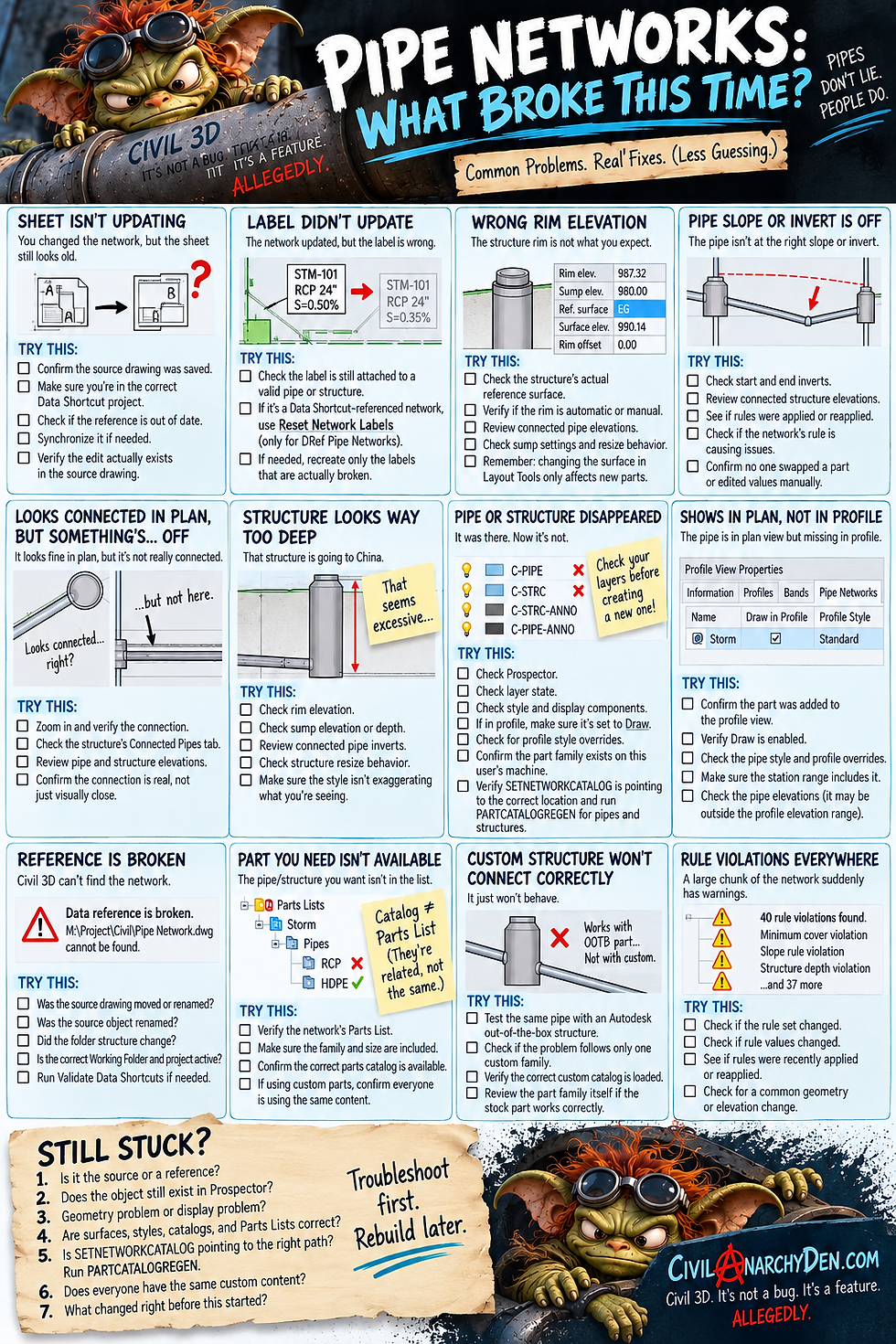
Images created with ChatGPT, 2026.
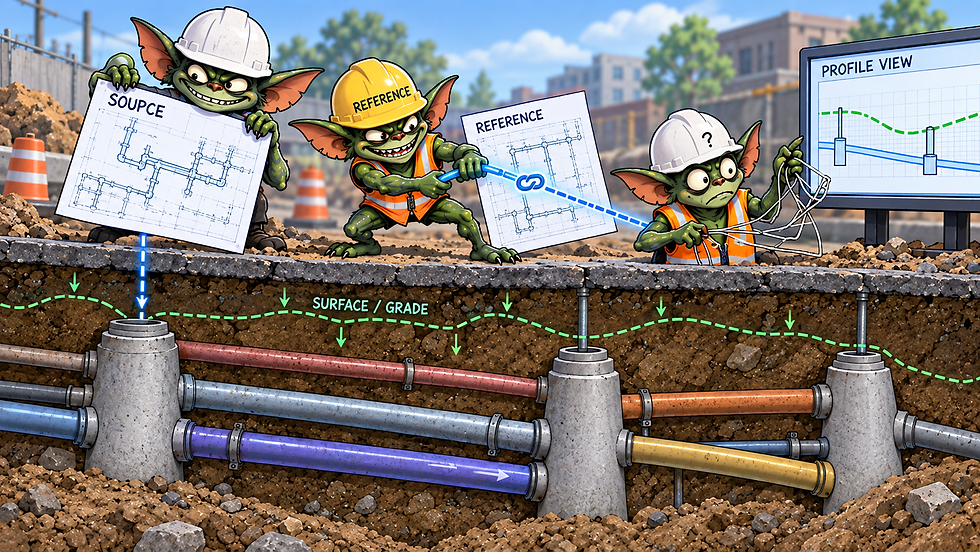

Comments